# AI Music Creation
### STEP 1. Access the Music Creation Page
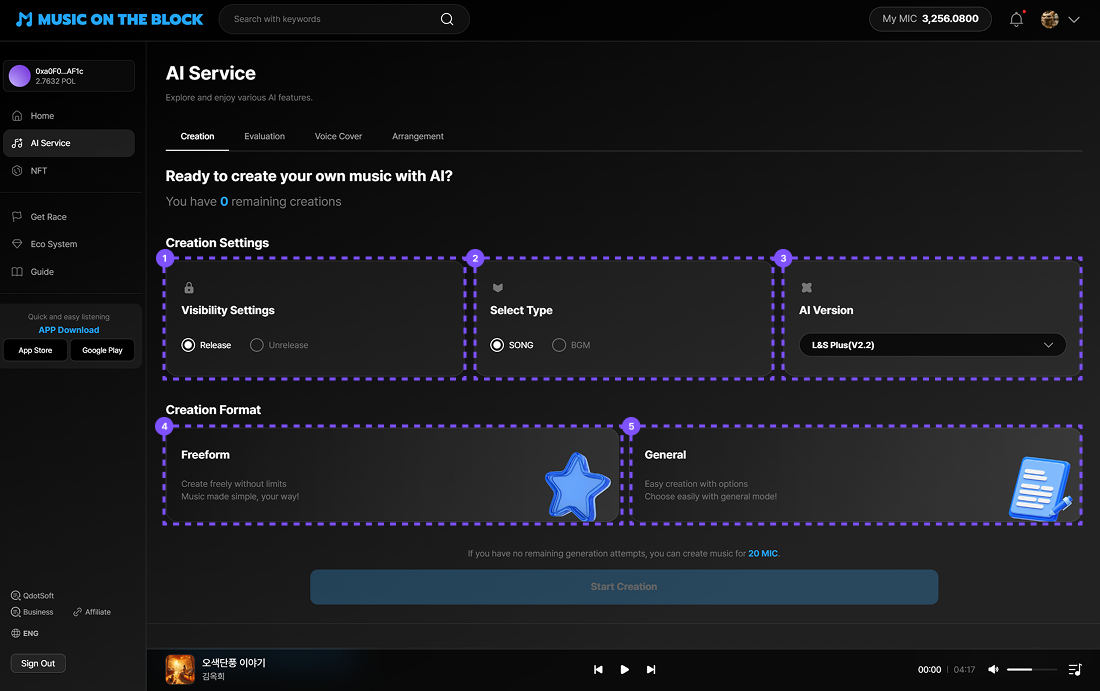
* After logging in, click the **\[AI Service]** **banner** from the left menu or the main screen.
* You will be taken to the AI Service page.
***
### STEP 2. Set Basic Options & Choose Creation Mode
**2-1. Basic Settings**\
Before creating your song, set the basic options such as song type and visibility.\
Please select the items below in order.
**① Set Song Visibility**
* **Release**: Other users can listen to and share the song.
* **Unrelease**: Only you can access it (can be switched to public later).
**② Select Music Type**
* **SONG**: Includes lyrics and vocals.
* **BGM**: Instrumental music that conveys mood and atmosphere.
**③ Choose AI Version**\
Select which AI model version to use for song creation.
※ Each version may have different styles and sounds. Models are continuously updated.
**④ Select Creation Format**
* **Free Mode (Text-based)**: Enter emotions, situations, or ideas → AI create lyrics and melody together.
* **General Mode (Option-based)**: Choose genre, mood, instruments, vocals + enter a short sentence \
→ AI builds the concept.
💡 Song creation requires **1 Song Credit** or **20 MIC Points**.
***
### STEP 3. Create Lyrics & Melody
{% tabs %}
{% tab title="Free Mode (Text-based)" %}
Free Mode automatically creates both lyrics and melody based on the text you enter.\
You can select between General Mode and Custom Mode.
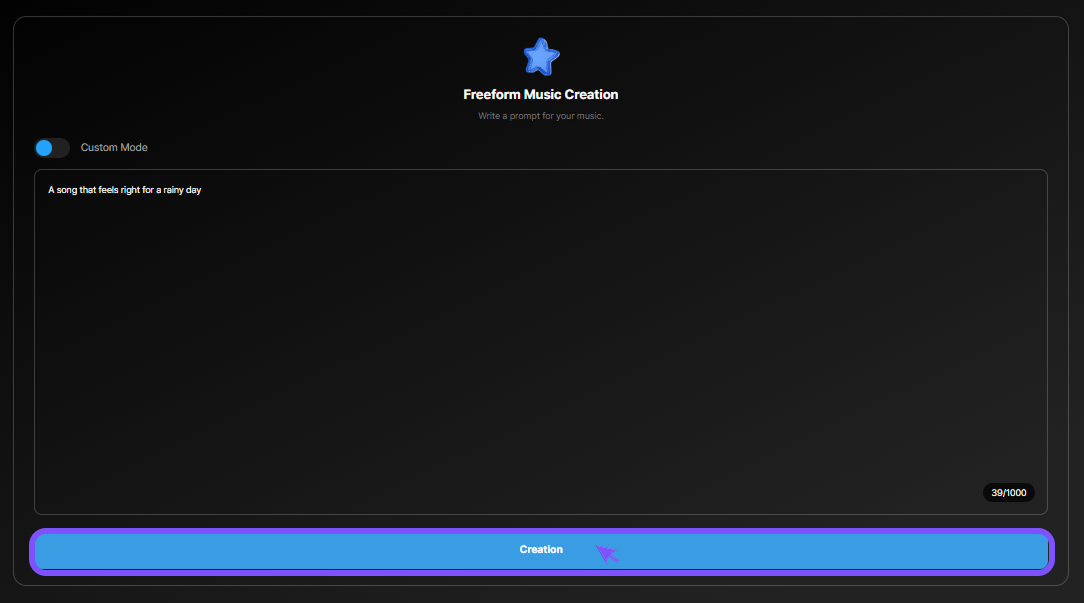
**1. General Mode**
* Enter a short text (emotion, situation, idea, etc.)
* Click **\[Creation]**The AI automatically creates both lyrics and melody based on your input.
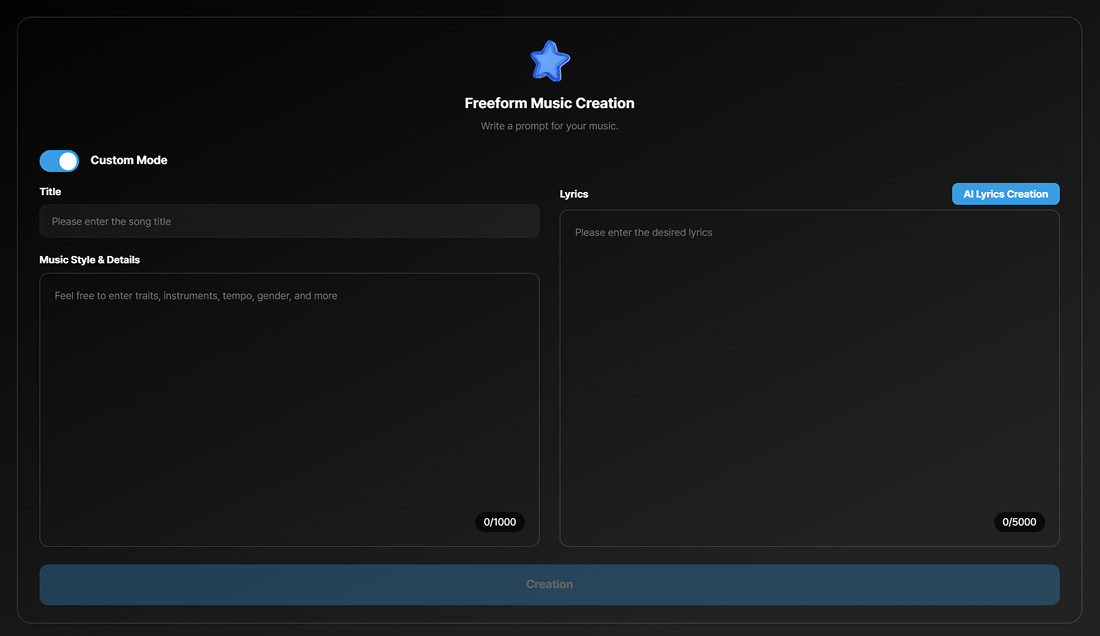
**2. Custom Mode**
Use this mode when you want to define the message and structure of the song in more detail.
**Basic Information**
* Enable Custom Mode using the toggle
* Enter a song title
* Add style notes or a detailed description
**Create & Edit Lyrics**
* Write your own lyrics, or click **\[AI Lyrics Creation]** to generate them
* Review and freely edit the generated lyrics
**Create Music**
* After confirming all inputs, click **\[Creation]**
The AI generates the entire song based on your details.
{% endtab %}
{% tab title="General Mode (Option-Based)" %}
General Mode automatically creates the entire song—from lyrics to melody—based on the options you select and a short sentence you provide.
\
**3-1. Create Lyrics**
* Select keywords
* Choose the desired genre or style
* Enter a short story or concept for the lyrics
Click **\[Lyrics Creation]** and the AI will create a basic draft of the lyrics.
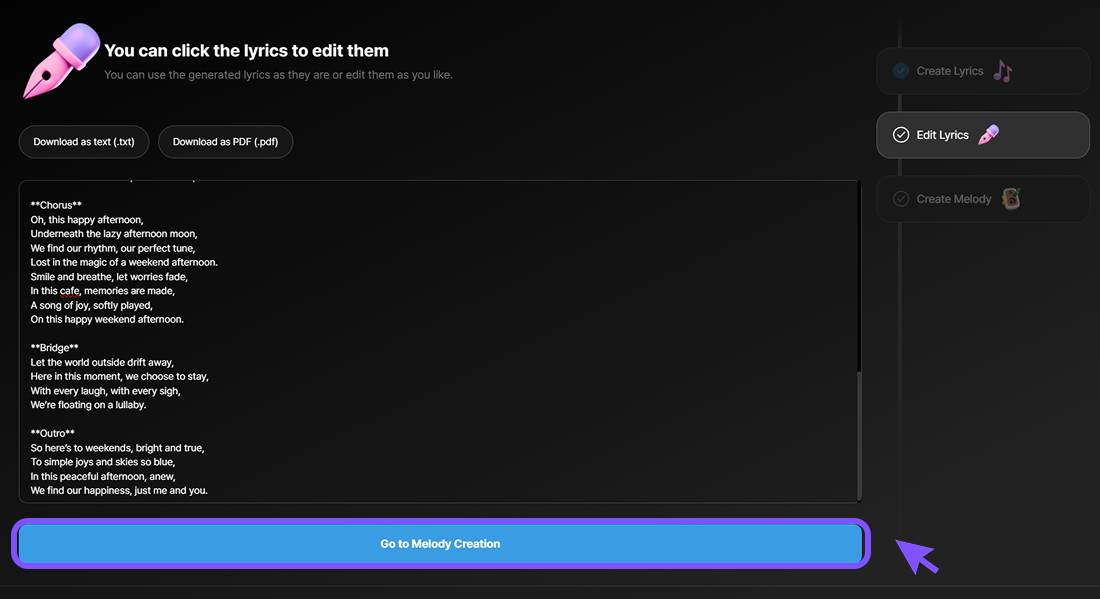
**3-2. Review and Edit Lyrics**
* Review the generated lyrics and edit them freely if needed
* After completing the lyric editing, click **\[Go to Melody Creation]** to proceed
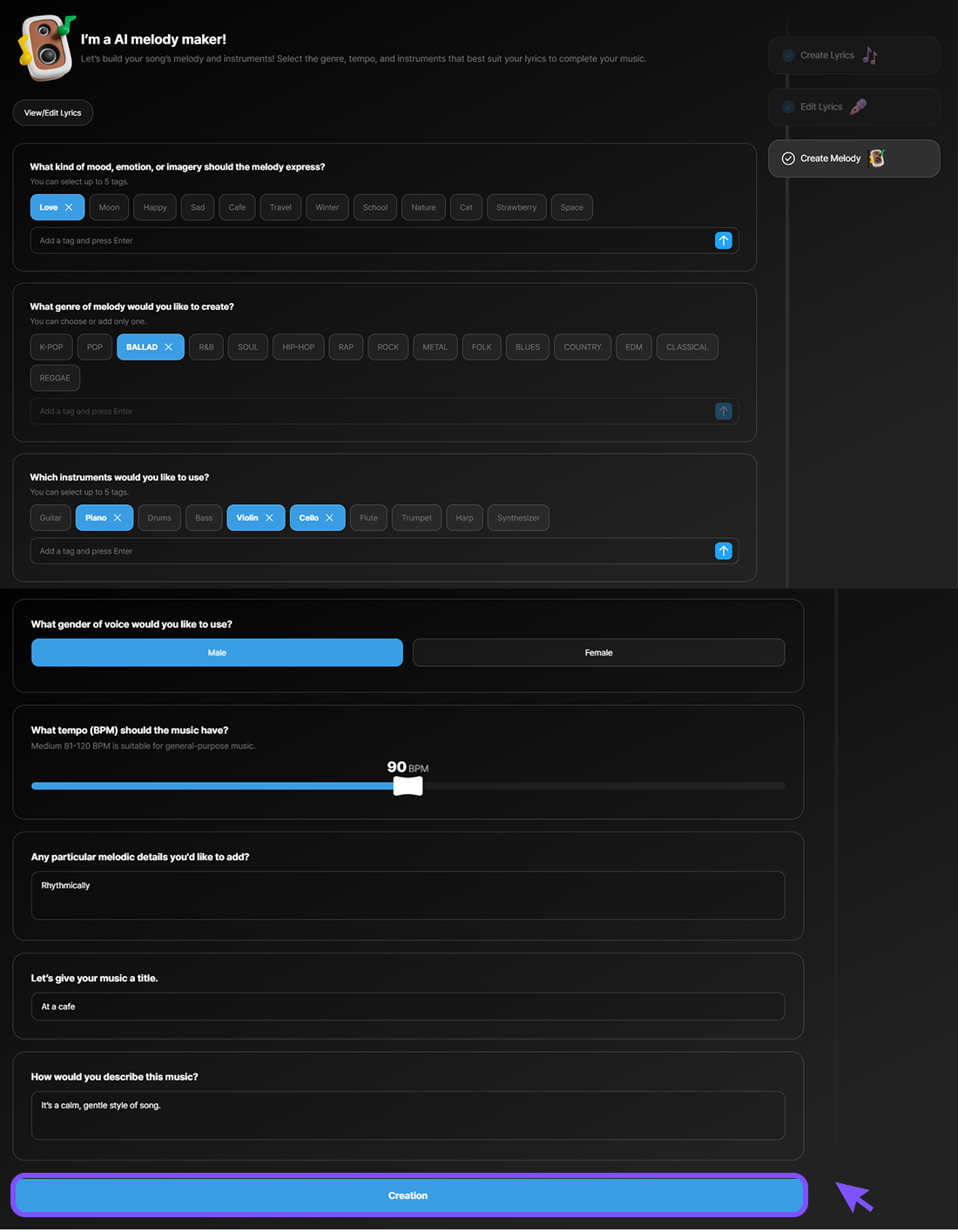
**3-3. Create Melody**
\
Set the musical elements that define the song’s overall feel and structure.
* **Select Mood:** Choose the emotion or atmosphere the song will deliver\
\&#xNAN;*(e.g., love, café, travel, winter)*
* **Select Genre:** Pop, Ballad, Hip-hop, Rock, etc.
* **Select Instruments:** Guitar, Piano, Drums, Violin, etc.
* **Select Vocal Style:** Male / Female
* **Set Tempo (BPM):** Adjust the song’s speed using the slider
* **Enter Additional Details:** Add optional notes about melody direction
* **Enter Title & Description:** Write the song title and a short description
After completing all settings, click **\[Creation]** and the AI will automatically create the full song based on your inputs.
{% endtab %}
{% endtabs %}
***
### STEP 4. Completion & Playback
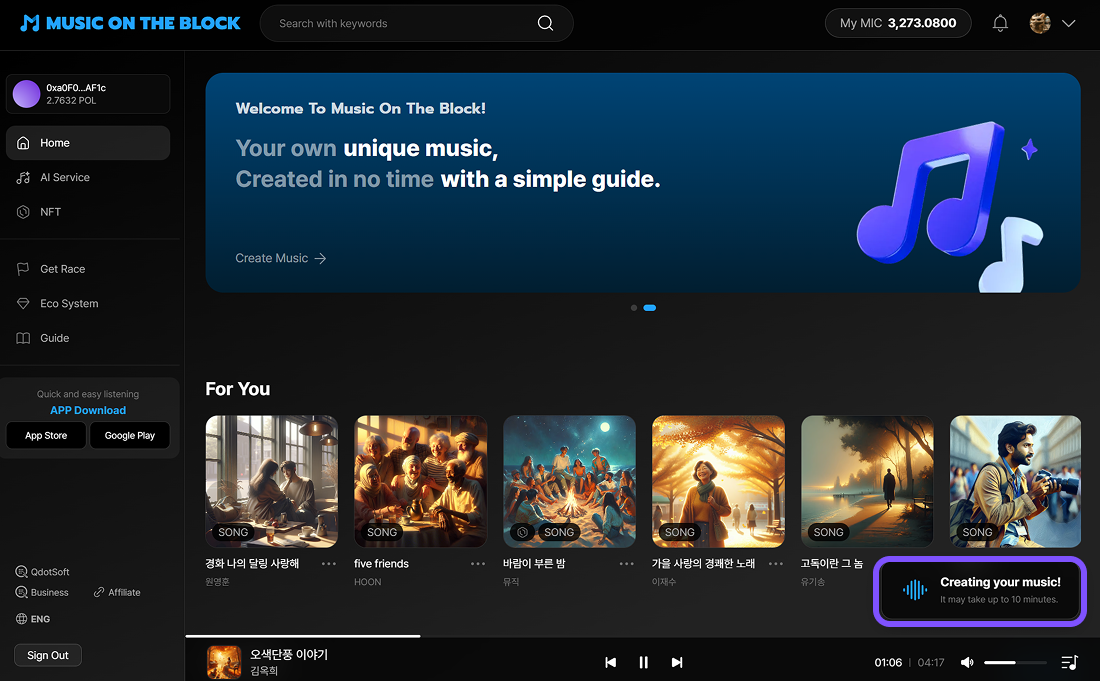
**4-1. Creation in Progress**
* Creating a song takes some time.
* A **“Creating…”** status will appear at the bottom of the screen.\
You can browse or listen to other songs while creation is in progress.
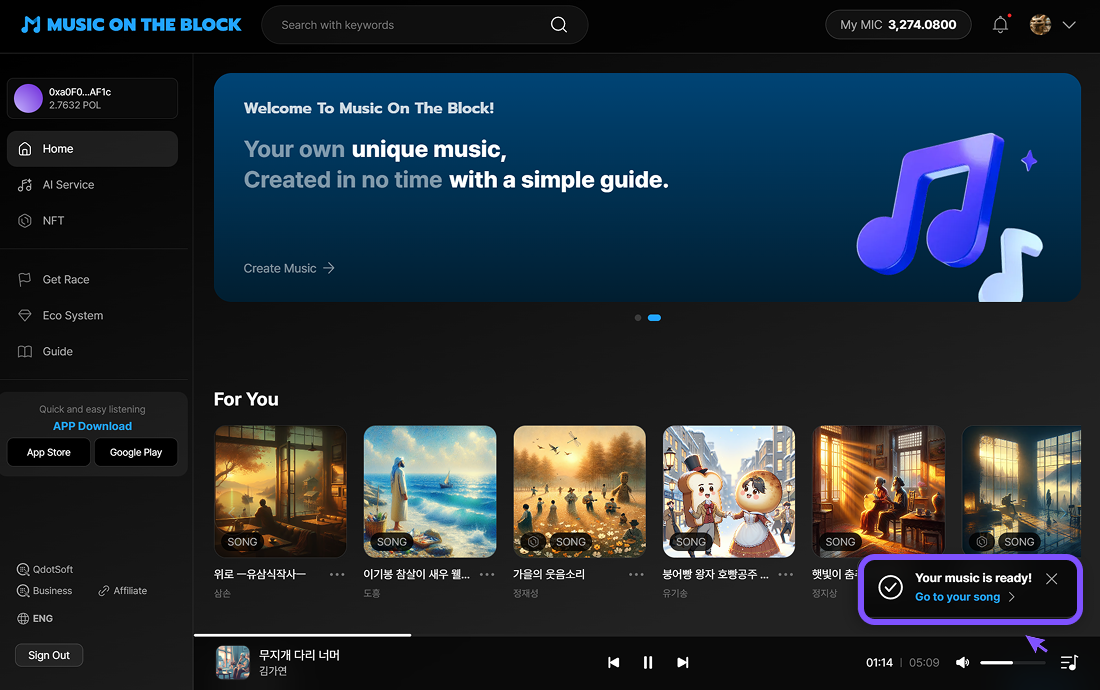
**4-2. Listen to the Created Song**
* When the process is complete, the status changes to **“Your music is ready!”**
* Click **the notification** to go directly to the song’s detail page, where you can immediately listen to and review your newly created track.
{% hint style="info" %}
This guide is based on the interface and features available at the time of writing.\
Actual screens, button labels, and user flows may change as the service is updated or improved.
{% endhint %}
***